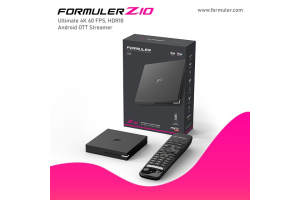
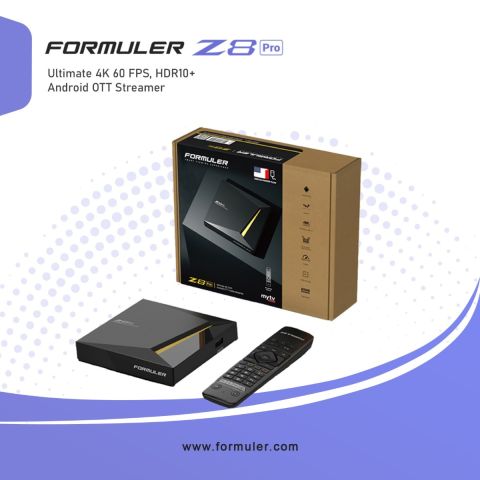
Formuler Z8 Pro Remote Control
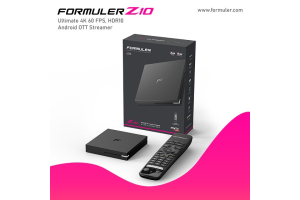
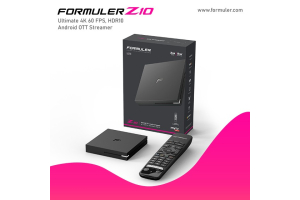
The Formuler Z8 Pro comes with a remote control that is specifically designed for this device. The remote control is compact and easy to use. It has a number of buttons that allow you to navigate through the device's menus and control various functions.
Here's a quick overview of the buttons on the Formuler Z8 Pro remote control:
- Power: Turns the device on and off.
- Home: Takes you back to the home screen.
- Menu: Displays the main menu.
- Directional keys: Allow you to navigate up, down, left, and right.
- OK: Confirms a selection.
- Back: Takes you back to the previous screen.
- Info: Displays information about the currently selected item.
- Exit: Exits the current app or menu.
- Volume +/-: Adjusts the volume of the device.
- Mute: Mutes the sound.
- Channel +/-: Allows you to change channels when watching TV.
- Play/Pause: Plays or pauses the currently selected content.
- Fast forward/Rewind: Allows you to skip forward or backward in content.
Note that the buttons may vary slightly depending on the specific model of the Formuler Z8 Pro remote control.
FAQ
How do I use my Formuler Z8 remote control?
- Press and hold the TV button on your Formular remote for 5 seconds.
- The Formuler remote's programming button should be pressed.
- Press the button designated for transfer on the TV remote while keeping the distance between the heads of the remotes at less than 3 cm.
- For additional keys, you can repeat steps 1-3.
- Leave the learning mode Any other button on your Formular remote will cause LED to go off.
How do I reset my Formuler remote?
- Remove the device's power source.
- While repeatedly pressing RED ▣ button(????NOT Recording ) on the remote, Insert power into the device
Press the RED button repeatedly, don't hold it down. - The status LED on the front of the device will flash quickly alternating from green to red.
- Put the remote in 1 and release the RED button.
- The process of factory reset will be started by the device.
- Don't turn off the device's power.
- Hold off until the reset process is finished.
- When you see the Setup Assistant on the TV screen, the reset process is finished.
How do I activate remote control?
The TV or any device you want to connect to must be turned on. Put batteries in your remote, then aim it at the object. For the device you are connecting, press and hold the appropriate device button on your remote. For instance, press the TV button to connect to a TV.
What if remote is not working?
Verify that none of the remote's buttons are stuck or jammed. The battery connectors for the remote control could be unclean. Place the batteries back into the remote control after removing them and using a cotton bud or soft cloth to wipe the remote control terminals with a tiny solution of alcohol.

Related Products
0 Comment(s)
Recent Posts