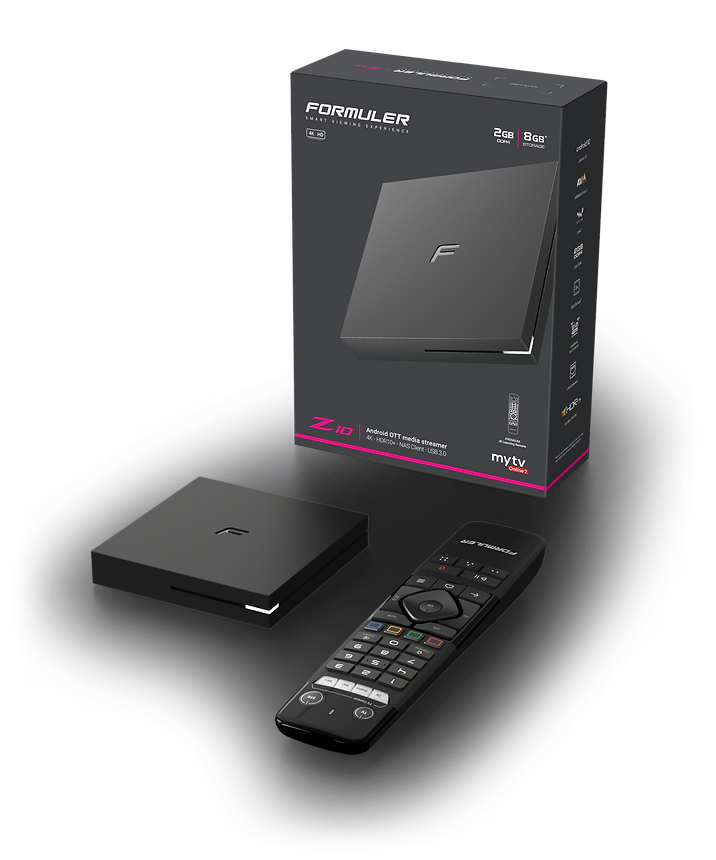
Formuler Z10 Pro in Canada - A Guide to App Removal and Sideloading

To remove an app on the Formuler Z10 Pro, follow these steps:
- Turn on your Formuler Z10 Pro and go to the home screen.
- Navigate to the "MyApps" section using the remote control or the on-screen interface.
- Find the app you want to remove and select it.
- Press the "Options" button on your remote control (usually represented by three dots or lines).
- A menu will appear with various options. Choose "Uninstall" or "Delete" to remove the app.
- Confirm the uninstallation when prompted.
That some pre-installed system apps may not have the option to uninstall, as they are essential for the device's functionality.
Now, regarding app sideloading on the Formuler Z10 Pro, sideloading refers to the process of installing apps from sources other than the official app store. Here's how you can sideload apps on the Formuler Z10 Pro:
- Enable app sideloading by going to the settings menu. On the home screen, navigate to "Settings."
- Scroll down and select "Security & Restrictions" or a similar option.
- Look for an option called "Unknown Sources" or "Install from Unknown Sources" and toggle it on. This will allow you to install apps from third-party sources.
- Obtain the APK file of the app you want to install. You can download APK files from various websites or transfer them from a USB drive.
- Once you have the APK file, open the "File Manager" or a similar app on your Formuler Z10 Pro.
- Locate the APK file and select it. You will be prompted to install the app.
- Follow the on-screen instructions to install the app. Once the installation is complete, you can find the app in the "MyApps" section or on the home screen.
Keep in mind that sideloading apps from unknown sources can pose security risks, as they may contain malware or other harmful elements. It's recommended to only install apps from trusted sources.
Related Products
- 0 Comment(s)
Recent Posts