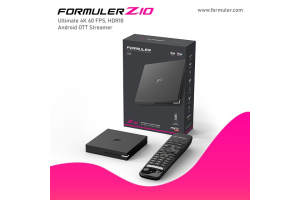
Formuler Z10 Pro IPTV Setup, Subscriptions, and Channel Options 2k23
To set up your Formuler Z10 Pro for IPTV, follow these steps:
- Connect your Formuler Z10 Pro to your TV using an HDMI cable.
- Connect the Formuler Z10 Pro to your home network using either an Ethernet cable or Wi-Fi.
- Power on the Formuler Z10 Pro and wait for it to boot up.
- On your TV, select the appropriate HDMI input to view the Formuler Z10 Pro interface.
- Follow the on-screen instructions to complete the initial setup process, including selecting your language and connecting to your Wi-Fi network (if using Wi-Fi).
- Once the setup is complete, you will be taken to the main interface of the Formuler Z10 Pro.
To subscribe to an IPTV service on your Formuler Z10 Pro, you will need to follow the instructions provided by the IPTV service provider. Typically, this involves visiting their website, selecting a subscription plan, and providing your Formuler Z10 Pro's MAC address. The MAC address can usually be found in the device's settings or on the bottom of the device itself.
After subscribing to an IPTV service, you will receive login credentials (usually a username and password) or an M3U playlist URL. Here's how to set it up:
- Go to the Formuler Z10 Pro's settings menu by pressing the "Menu" button on your remote.
- Select "My TV" from the menu.
- Choose "Portals" and then select "Add Portal."
- Enter a name for the portal (e.g., "IPTV Subscription").
- Enter the portal URL or M3U playlist URL provided by your IPTV service provider.
- Save the settings and exit the menu.
Once you have set up the IPTV subscription, you should be able to access the IPTV channels on your Formuler Z10 Pro. Simply navigate to the "My TV" section of the main interface and select the IPTV portal you added. The channels provided by your IPTV subscription should be available for viewing.

Related Products
- 0 Comment(s)
Recent Posts