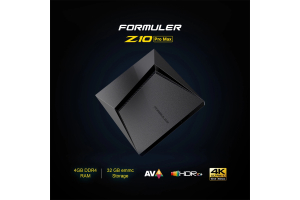
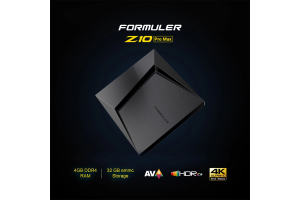
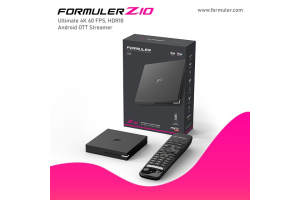
Formuler Z10 Pro Manual - User Guide
User Manual for Formuler Z10 Pro
The user manual for the Formuler Z10 Pro, an advanced multimedia streaming device that offers a seamless entertainment experience. This comprehensive guide aims to assist you in understanding and maximizing the features and functionalities of the Formuler Z10 Pro. By following this manual, you can unlock the full potential of your device and enjoy a truly immersive multimedia experience.
Getting Started
1.1 Unboxing the Formuler Z10 Pro
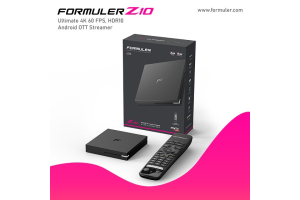
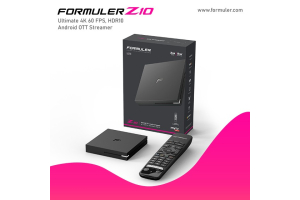
Upon unboxing your Formuler Z10 Pro, you will find the following components:
Formuler Z10 Pro multimedia streaming device
Power adapter
Remote control
HDMI cable
Quick start guide
1.2 Setting Up the Formuler Z10 Pro
To set up your Formuler Z10 Pro, follow these steps:
- Connect the HDMI cable to your TV or monitor and the other end to the HDMI port on the Formuler Z10 Pro.
- Please connect the power adapter to the Formuler Z10 Pro and insert it into an electrical outlet.
- Power on your TV or monitor and select the corresponding HDMI input.
- Insert the batteries into the remote control and ensure it is within range of the Formuler Z10 Pro.
- Kindly adhere to the on-screen prompts to successfully finalize the initial setup procedure.
Navigating the Formuler Z10 Pro Interface
2.1 Remote Control Layout
The Formuler Z10 Pro remote control features a user-friendly layout with intuitive buttons for easy navigation and control. Familiarize yourself with the buttons, including the directional arrows, enter/select button, home button, and back button.
2.2 Home Screen
Upon successful setup, you will be greeted with the Home Screen. This screen serves as the central hub for accessing various features and applications available on the Formuler Z10 Pro. Navigate through the Home Screen using the directional arrows on the remote control.
Using the Formuler Z10 Pro
3.1 Streaming Content
The Formuler Z10 Pro allows you to stream a wide range of multimedia content. Access popular streaming services, such as Netflix, Hulu, and YouTube, by selecting the corresponding app from the Home Screen. Use the remote control to browse and select your desired content.
3.2 Recording and Timeshifting
With the Formuler Z10 Pro, you can record your favorite shows and movies. Simply connect an external storage device to the USB port and follow the on-screen instructions to start recording. Additionally, the Timeshifting feature allows you to pause, rewind, and fast-forward live TV.
Troubleshooting
If you encounter any issues with your Formuler Z10 Pro, refer to the troubleshooting section of the user manual. It provides step-by-step instructions to resolve common problems and ensure smooth operation of your device.


Related Products
- 0 Comment(s)
Recent Posts