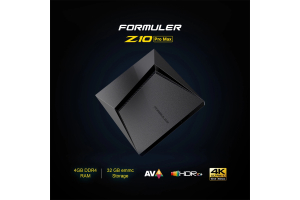
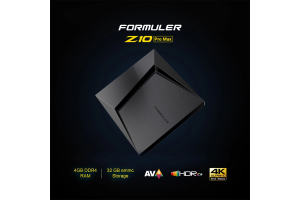
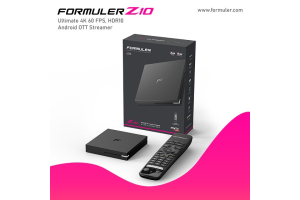
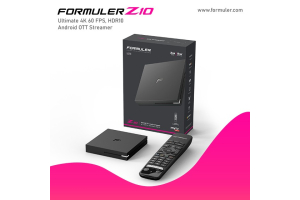
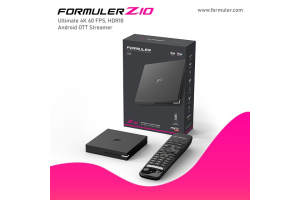
Formuler Z10 IPTV Setup

With its sleek design, powerful features, and seamless integration, the Formuler Z10 is the perfect device for accessing a world of entertainment. Whether you're a sports enthusiast, a movie buff, or simply enjoy binge-watching your favorite shows, this guide will walk you through the steps to set up your Formuler Z10 and get you started on an immersive IPTV experience.
Getting Started with Formuler Z10 IPTV
Before diving into the setup process, let's get familiar with the Formuler Z10 IPTV device. The Formuler Z10 is a cutting-edge media player that combines the functionality of a streaming device with the versatility of an IPTV box. It runs on the Android operating system, providing you with access to a wide range of apps and streaming services. Its powerful processor ensures smooth playback and quick navigation, while its intuitive interface makes it easy to use for both beginners and tech-savvy users.
Setting Up Your Formuler Z10 IPTV
Step 1: Unboxing and Connecting Your Formuler Z10
Once you have your Formuler Z10 IPTV device in hand, it's time to set it up. Start by unboxing the device and carefully removing all the accessories. Connect the device to your TV using the HDMI cable provided. Ensure that the HDMI cable is securely connected to both the Formuler Z10 and your TV.
Step 2: Powering On and Initial Setup
After connecting your Formuler Z10 to your TV, plug in the power adapter to a nearby electrical outlet. Press the power button on the device, and you'll be greeted with the Formuler logo on your screen. Follow the on-screen prompts to complete the initial setup, including selecting your preferred language, connecting to your Wi-Fi network, and signing in with your Google account.
Step 3: Installing IPTV Apps
Now that your Formuler Z10 is up and running, it's time to install the IPTV apps that will bring your favorite content to your fingertips. Open the Google Play Store on your Formuler Z10 and search for popular IPTV apps like TiviMate, Smart IPTV, or IPTV Smarters. Install your preferred app, and once the installation is complete, launch the app and follow the on-screen instructions to set up your IPTV service provider.
Step 4: Configuring IPTV Settings
To ensure the best viewing experience, it's essential to configure the IPTV settings on your Formuler Z10. Open your chosen IPTV app and navigate to the settings menu. Here, you can enter your IPTV subscription details, such as your username and password, server URL, and EPG (Electronic Program Guide) settings. Take your time to explore the settings and customize them according to your preferences.
Step 5: Exploring the Formuler Z10 Features
The Formuler Z10 is packed with an array of features that enhance your IPTV experience. Take some time to familiarize yourself with these features and make the most out of your device. From time-shifting and recording capabilities to advanced audio settings and customizable user interfaces, the Formuler Z10 offers a world of possibilities.
Step 6: Customizing Your Formuler Z10
Personalize your Formuler Z10 by exploring the customization options. Change the wallpaper, rearrange the app icons, or set up shortcuts to your favorite apps for quick access. The Formuler Z10 allows you to create a personalized entertainment hub tailored to your preferences.
Step 7: Enjoying Your IPTV Experience
With your Formuler Z10 set up and customized to your liking, it's time to sit back, relax, and enjoy your IPTV experience. Explore the vast selection of live TV channels, catch up on missed episodes with on-demand content, and discover new shows and movies from various streaming services. The Formuler Z10 provides a seamless and immersive entertainment experience that will keep you entertained for hours on end.
FAQs
Can I connect the Formuler Z10 to my existing cable or satellite TV service?
No, the Formuler Z10 is an IPTV device that requires an internet connection to access content. It does not support traditional cable or satellite TV services.
Can I install additional apps on the Formuler Z10 besides IPTV apps?
Yes, the Formuler Z10 runs on the Android operating system, allowing you to install a wide range of apps from the Google Play Store. You can enjoy popular streaming services, games, productivity apps, and more.
Do I need a high-speed internet connection for the Formuler Z10 to work effectively?
While a high-speed internet connection is recommended for optimal streaming quality, the Formuler Z10 can work with a standard broadband connection. However, slower internet speeds may result in buffering or lower video quality.
Can I use the Formuler Z10 in multiple rooms?
Yes, you can set up multiple Formuler Z10 devices in different rooms and access the same IPTV service provider on each device. This allows you to enjoy your favorite content in various locations within your home.
Can I record TV shows with the Formuler Z10?
Yes, the Formuler Z10 supports external storage devices, such as USB flash drives or external hard drives, for recording TV shows. Simply connect your storage device to the Formuler Z10 and set up the recording function within your preferred IPTV app.


Related Products
- 0 Comment(s)
Recent Posts