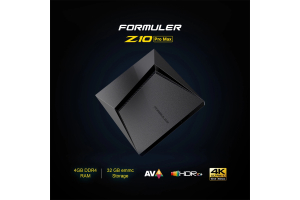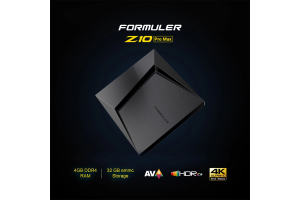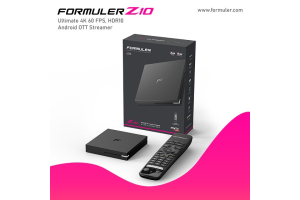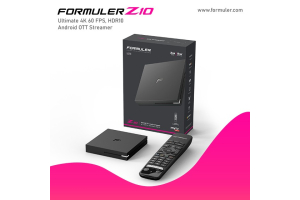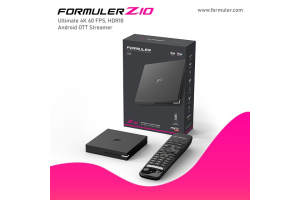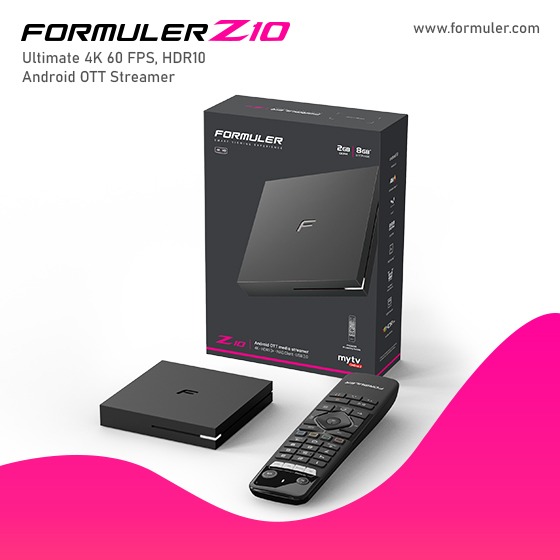
Formuler Z10 Pro App Installation and Settings New 2K23

To install apps on the Formuler Z10 Pro and adjust the app settings, follow the instructions
- Turn on your Formuler Z10 Pro and ensure it is connected to the internet.
- On the home screen, navigate to the "MyTvOnline 2" app and launch it. This is the default app for IPTV on the Formuler Z10 Pro.
- To install additional apps, go to the "Market" section within the MyTvOnline 2 app. Here, you'll find a selection of apps available for download.
- Browse through the available apps and select the one you want to install. Click on it to access the app's page.
- On the app's page, you will see an "Install" or "Download" button. Click on it to start the installation process.
- Wait for the app to download and install. Once it's finished, you can access the newly installed app from the home screen or the Apps section of your Formuler Z10 Pro.
To adjust app settings:
- Open the app you want to adjust the settings for.
- Look for a settings icon within the app. It's usually represented by a gear or three vertical dots.
- Click on the settings icon to access the app's settings menu.
- Inside the settings menu, you'll find various options and preferences that you can customize according to your preferences. These settings may vary depending on the specific app you're using.
- Make the desired changes to the settings. You can adjust things like display resolution, audio settings, network settings, and more, depending on the app.
- Once you've made the necessary changes, save the settings if applicable, and exit the settings menu.
The availability of apps and specific settings may vary depending on your region, firmware version, and app store. Make sure your Formuler Z10 Pro is up to date with the latest firmware to access the most recent apps and features.
Related Products
- Comment(s)
Recent Posts